

Google Just Changed Everything. Again
7 Gemini updates from I/O 2026 that actually matter for newsletter creators

Google I/O 2026 dropped last week.
Most creators skimmed the headline, closed the tab, and went back to writing. Totally understandable. These events are usually two hours of developer jargon designed for engineering teams, not solo writers trying to publish four newsletters a week.
But this one was different.
WHAT YOU’LL GET FROM THIS
I went through everything. I cut what doesn’t matter for creators. What’s left are seven features across seven categories of your workflow.
By the end of this, you’ll know exactly what changed, why it matters if you write on Substack, and the first step to use each one this week.
No fluff. No enterprise stuff. Just what changes for you.
CATEGORY 1: A Faster, Smarter Engine Under Everything
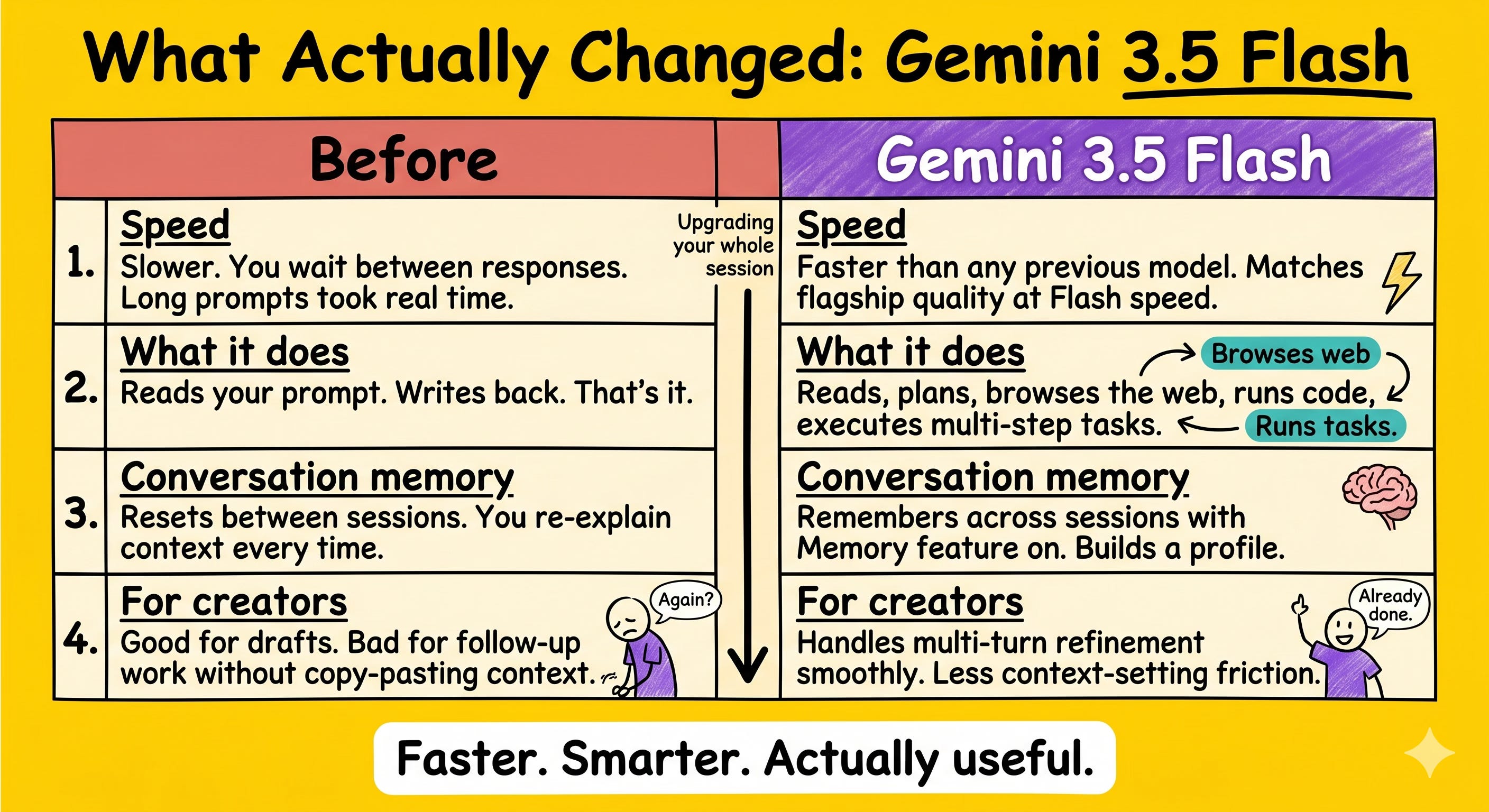
What Changed: Gemini 3.5 Flash
Google launched Gemini 3.5 Flash as the new default model inside the Gemini app, AI Search, and every agent they announced at I/O.
Here’s what that means in plain language.
The model that now powers your Gemini session is faster than its predecessor and smart enough to rival what used to be the top-tier, slower models.
It’s built on something Google calls the “Antigravity harness” - infrastructure that lets the model take action in the world, not just produce text.
Think of it this way. Previous Gemini models were readers. They read your prompt and wrote back. This one is a doer. It can browse the web, run code, manage files, and execute multi-step tasks in the background.
For newsletter creators, you feel this in two places immediately.
Step 1. Open the Gemini app at gemini.google.com. Check the model selector at the top. If it doesn’t already say “3.5 Flash,” switch to it.
Step 2. Try a prompt you’ve used before on the old model. Ask it to outline your next newsletter, analyze a reader reply, or rewrite a hook. Notice the speed.
Step 3. Pay attention to how it handles follow-up instructions within the same conversation. This model retains context better than earlier versions, so multi-turn conversations where you refine a draft are noticeably smoother.
This model is the foundation for everything else on this list. Understanding it matters.
CATEGORY 2: An AI That Works While You Sleep
What Changed: Gemini Spark
This is the biggest announcement from I/O 2026, and almost no one covered it for creators.
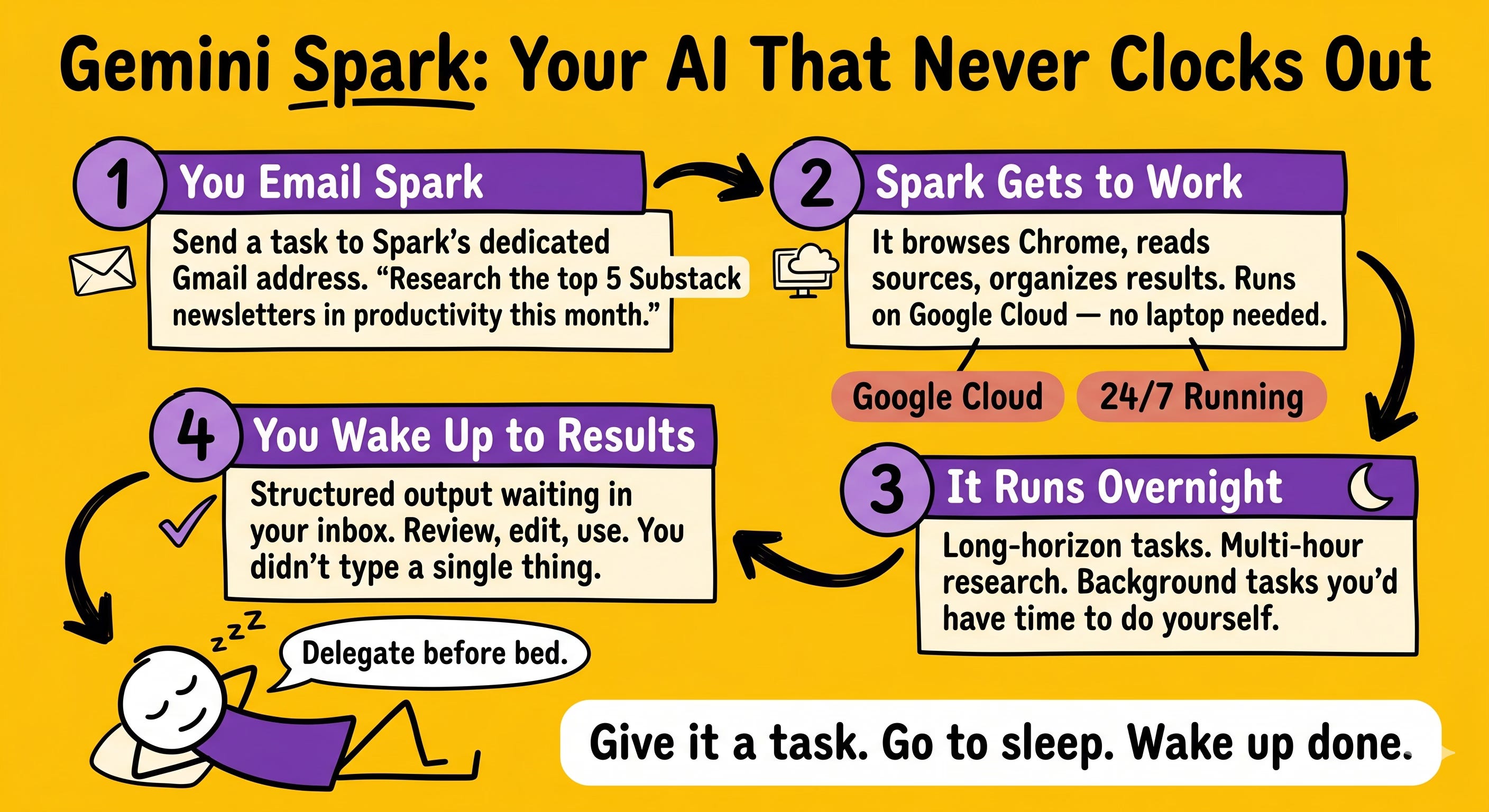
Gemini Spark is a personal AI agent that runs 24/7 on Google Cloud.
You don’t need to have your laptop open. You don’t need to be in the app. You give it a task, and it works in the background while you do something else - or while you sleep.
Here’s the part that’s genuinely new. Spark has its own Gmail address inside your account. You can email it a task the same way you’d delegate to an assistant. It reads your message, understands the context, and gets to work using Chrome to browse the web and tools to process and organize information.
Right now, Spark is rolling out to Google AI Ultra subscribers in the U.S. first.
Step 1. Check your Gemini app settings for a “Spark” option under the Agents section. If you don’t see it yet, you’re in the queue.
Step 2. When it activates, go to Settings and find your dedicated Spark email address. Save it.
Step 3. Start with a bounded, specific task. Good first task for newsletter creators: “Research the 5 most shared Substack posts in the productivity niche this month. List the headline, what the post is about, and why it likely performed well.”
Step 4. Email the task before you go to bed. Check the results in the morning. Review, don’t redo.
The instinct will be to give it something huge right away. Resist that. Small tasks first. Build trust in the output before you rely on it for anything mission-critical.
CATEGORY 3: Your Morning Triage, Automated
What Changed: Daily Brief
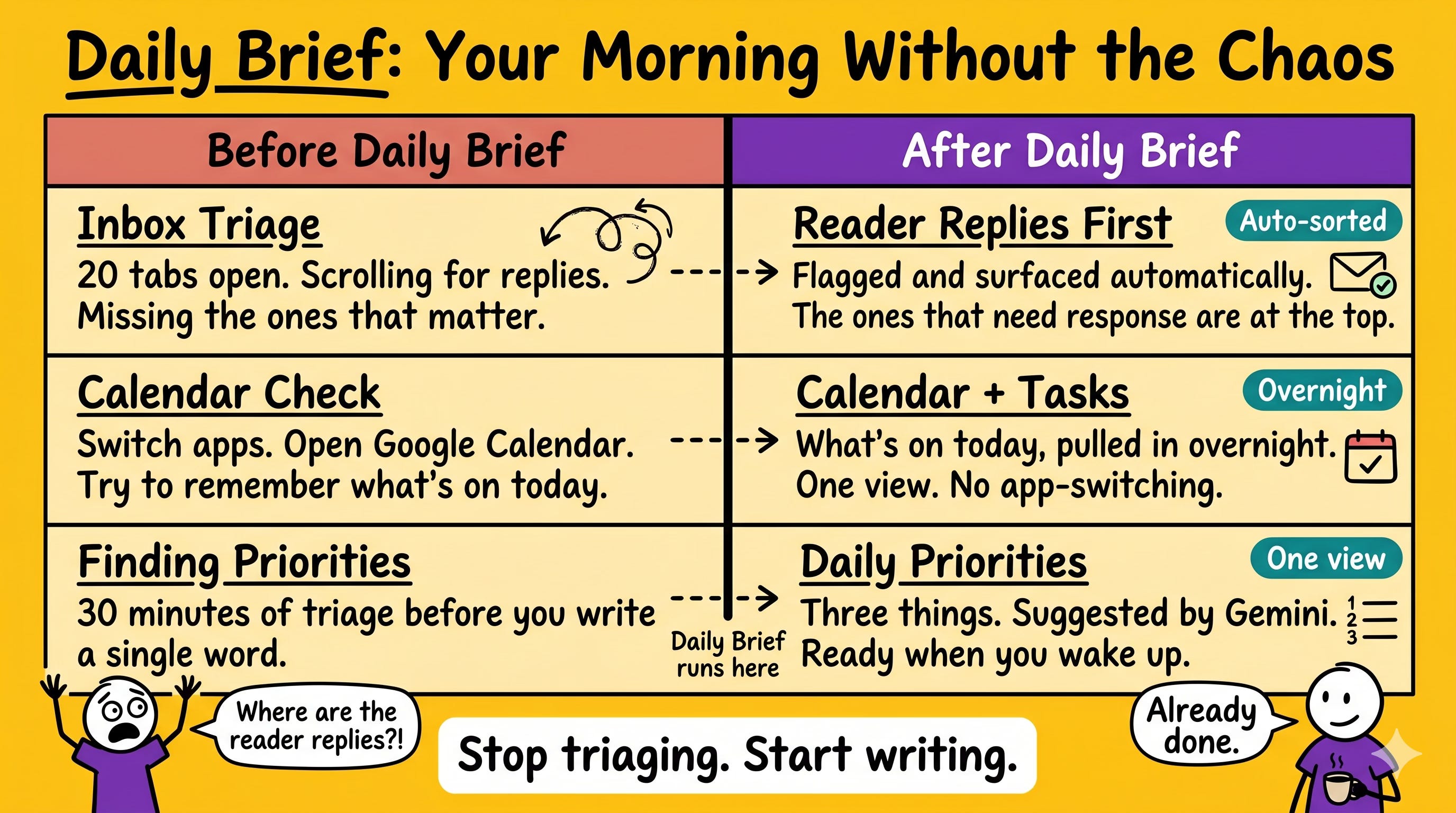
Every morning you probably open your email, scan for reader replies, check your calendar, and try to figure out what the priority is. That process takes 20 to 30 minutes. It’s not thinking. It’s triage.
Daily Brief does it for you overnight.
It’s a new built-in Gemini agent that connects to your Gmail, Google Calendar, and task list. While you sleep, it reads what’s coming in, what’s coming up, and what needs attention.
When you wake up, a structured digest is waiting for you. What matters today. What readers said. What’s on the schedule.
For a solo newsletter creator with no assistant, this is the closest thing to having one.
Step 1. Open the Gemini app. Look for “Daily Brief” in the sidebar or the tools menu. (If you don’t see this, you are in queue)
Step 2. Connect it to Gmail and Google Calendar when prompted. The more access you give it, the better the brief.
Step 3. Set a delivery time. 7 or 8 AM works well for most people. The brief will be ready before you open your inbox.
Step 4. In the Daily Brief settings, add a custom priority: “Flag any emails that are replies to my newsletter first.” Reader replies are your best content research. Make sure they’re the first thing you see.
Let it run for a week before adjusting anything. It takes a few days to understand your patterns.
CATEGORY 4: Gemini That Actually Knows You
What Changed: Personal Intelligence + Memory
Two features shipped together. They’re related, so read them together.
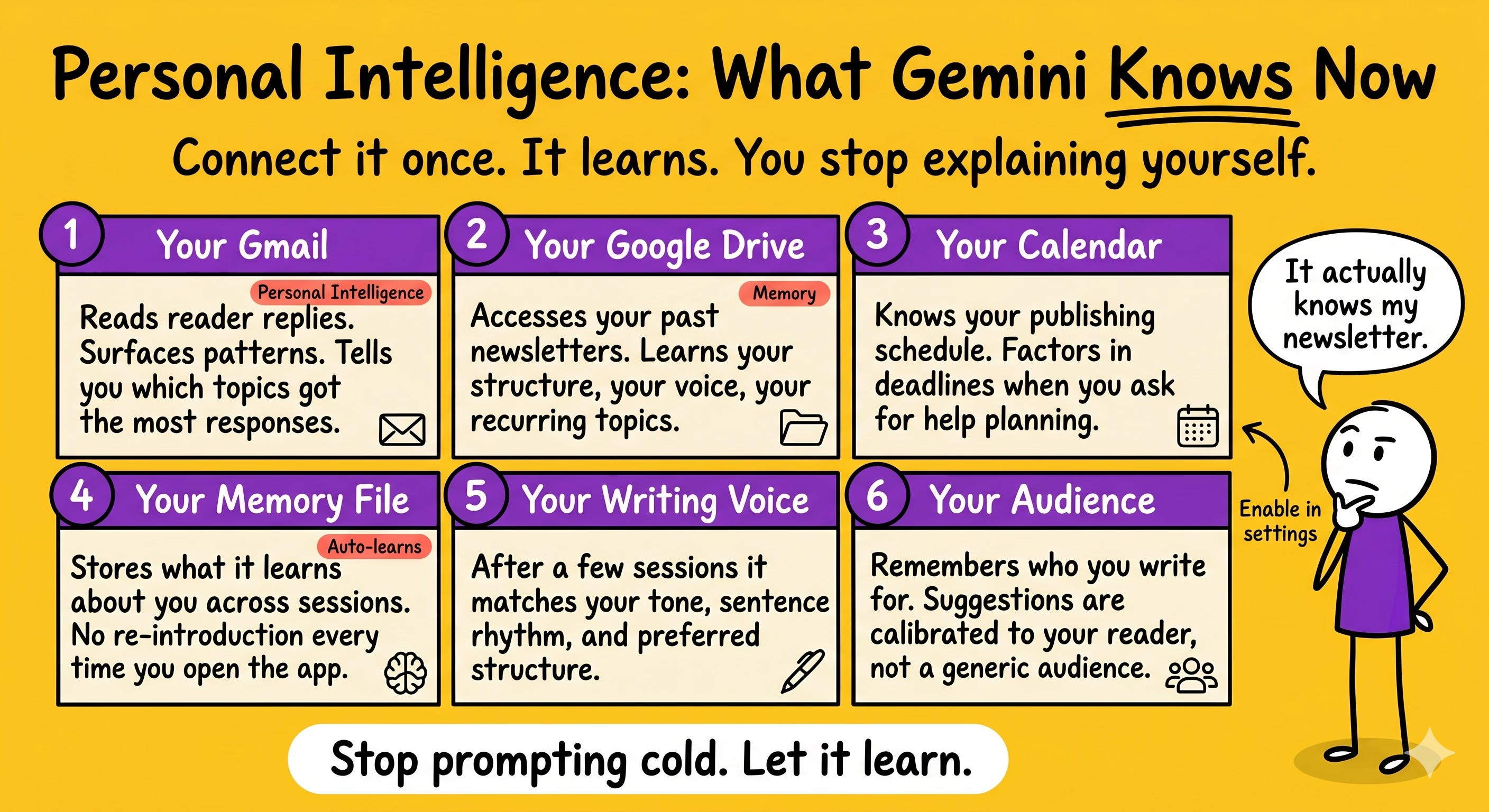
Personal Intelligence means Gemini can now connect directly to your Gmail, Google Drive, Calendar, Google Photos, and YouTube. It reads what’s actually happening in your life and uses that context when you ask it something. You stop having to explain your situation from scratch every single session.
Memory means Gemini now stores what it learns about you across conversations. It builds a picture of your preferences, your projects, your writing voice, and your goals over time. You don’t re-introduce yourself every time you open the app.
For newsletter creators, the practical payoff is this: when you ask Gemini to help refine a headline, give feedback on a hook, or suggest topics — it already knows your niche, your audience, and your tone. You’re not prompting blind anymore.
Step 1. Open Gemini app settings. Find “Personal Intelligence.” Toggle on Gmail and Drive. Those two connections matter most for creators.
Step 2. Go to Settings and find “Memory.” Make sure it’s turned on.
Step 3. In your next Gemini session, start by saying: “I write a Substack newsletter called [name] for [audience description]. I publish [X times per week]. My voice is [describe it in 2–3 words].” This seeds your memory file with the basics.
Step 4. Over the next two weeks, ask Gemini to help with small writing tasks — refining a subject line, improving a CTA, suggesting a hook. Watch how the suggestions change as it learns your setup.
This builds quietly. Give it two weeks before you judge it.
CATEGORY 5: Create Anything From One Conversation
What Changed: Gemini Omni + Creation Tools
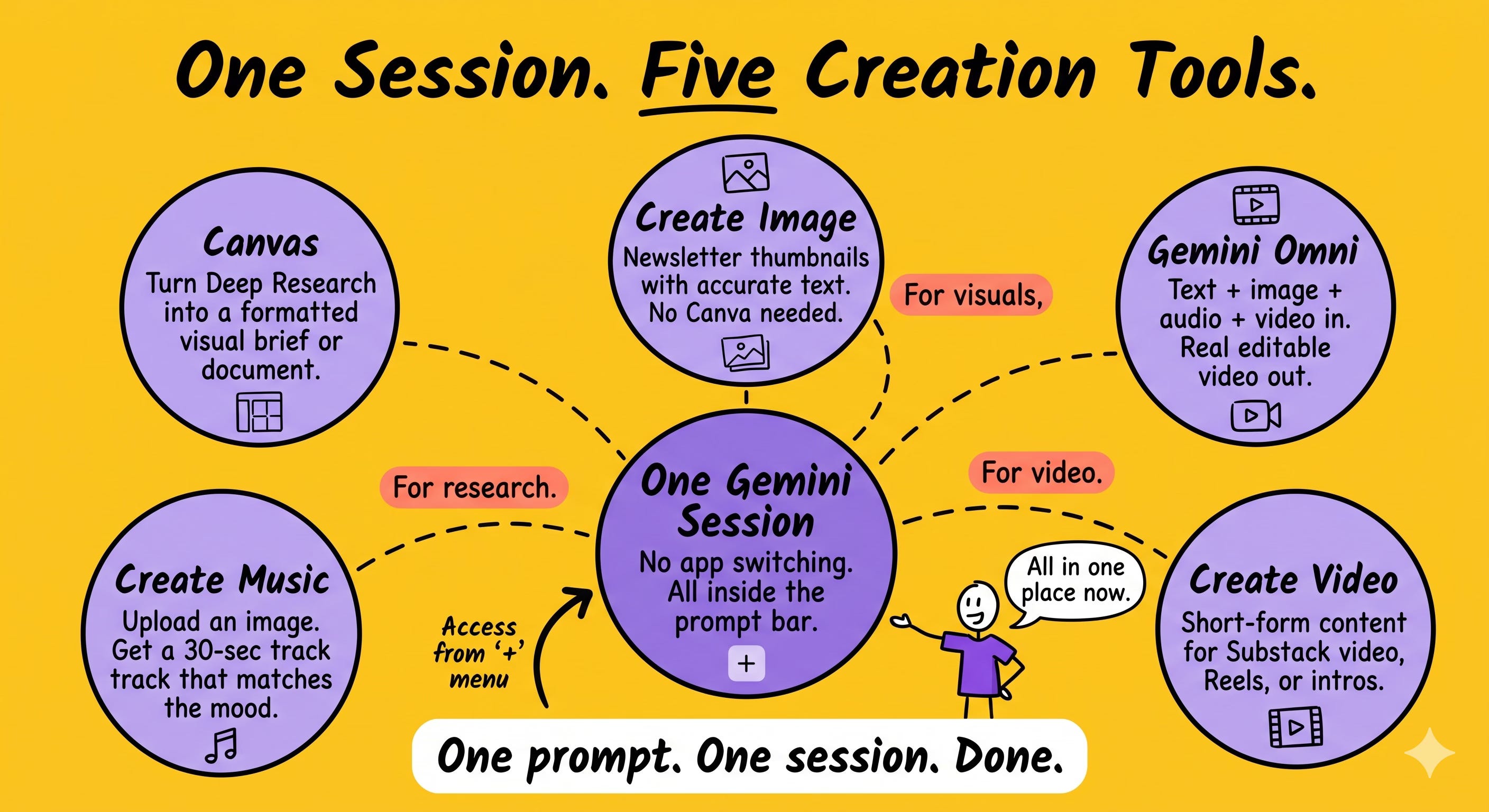
Gemini Omni is a new model that accepts any combination of text, image, audio, and video as input - and outputs video. Real video. Editable video, grounded in real-world knowledge.
The Gemini app also rolled out dedicated creation tools inside your main session: Create Image, Create Video, Create Music, and Canvas. These aren’t separate apps you have to navigate to. They’re inside the conversation window, available from the “+” menu.
Canvas deserves special attention. It lets you turn any Deep Research report, outline, or written document into an interactive visual, a formatted guide, or a quiz — inside the same session. It’s the connector between research and publishable content.
Step 1. In the Gemini app, tap the “+” button in the prompt bar. You’ll see the creation tools listed. Explore what’s there before you commit to a workflow.
Step 2. For a newsletter thumbnail: use Create Image and describe exactly what you want. Gemini’s image generation now handles text inside images accurately. You can put your headline directly in the visual without fixing it in Canva afterward.
Step 3. For research-to-draft: run a Deep Research query on your next newsletter topic. When the report lands, tap “Open in Canvas.” Reorganize the sections, highlight the insights worth keeping, and export it as your writing brief.
Step 4. For short-form video experiments: try Gemini Omni with a simple brief. “Create a 20-second intro clip for my newsletter [name]. Show the tagline as bold text on a clean background. Keep it minimal.” See what it produces before you commit more time to it.
You don’t need a production team. You need a clear brief and one session.
CATEGORY 6: Research That Runs Without You
What Changed: Deep Research + Search AI Mode
Two upgrades in one category.
Search AI Mode got Gemini 3.5 Flash as its default model globally. The AI-generated answers in Google Search are now faster and meaningfully better at complex questions. If you use Search to research newsletter topics, you already feel this — even without changing a setting.
Deep Research got a bigger overhaul. You can now upload your own source files — PDFs, links, past newsletters, screenshots — and Deep Research uses those as its reference material. The output quality jumped because 3.5 Flash now runs the analysis. And results can be opened directly in Canvas and transformed into formatted documents, visuals, or presentations.
For solo newsletter creators, this changes the research phase completely. You stop starting from a blank browser. You start from a brief.
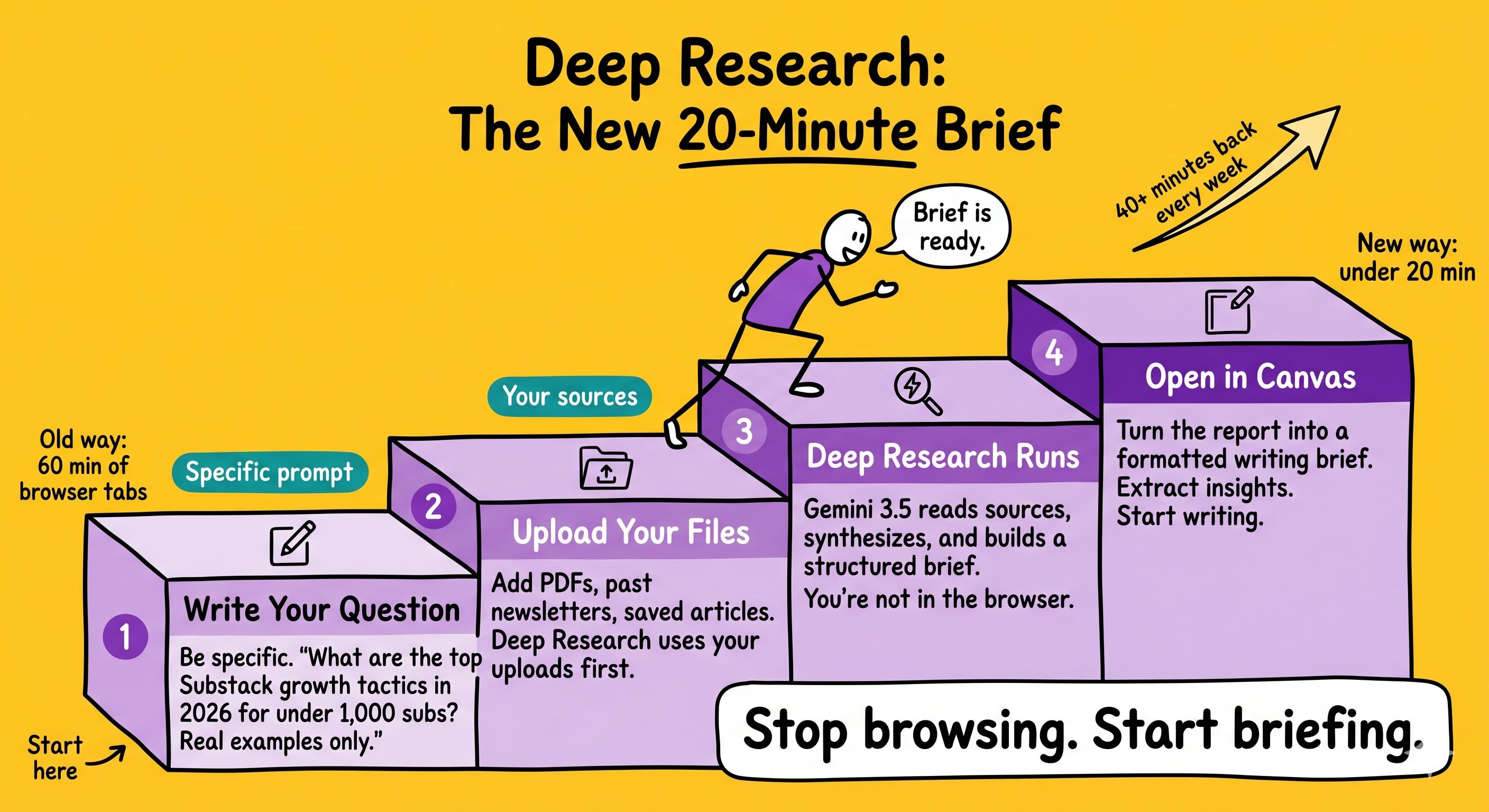
Step 1. Open the Gemini app. Select “Deep Research” from the tools menu (or the “+” prompt menu).
Step 2. Write a specific research question. “What are the most effective growth tactics for Substack newsletters in 2026 with under 1,000 subscribers? I want specific examples and real results, not general advice.”
Step 3. Upload any relevant files you already have. Old newsletters you wrote on the topic. A competitor post you saved. A PDF report. Deep Research will pull from your uploads first, then supplement with web sources.
Step 4. When the report is ready, tap “Open in Canvas.” Clean it up. Extract the three to five insights you actually need. That’s your writing brief.
Your research session just went from 60 minutes to under 20.
CATEGORY 7: The New Pricing and What It Actually Means
What Changed: AI Ultra Tier + Compute-Based Limits
Google announced two pricing changes at I/O 2026 that affect how much you can use these features — and what you pay.
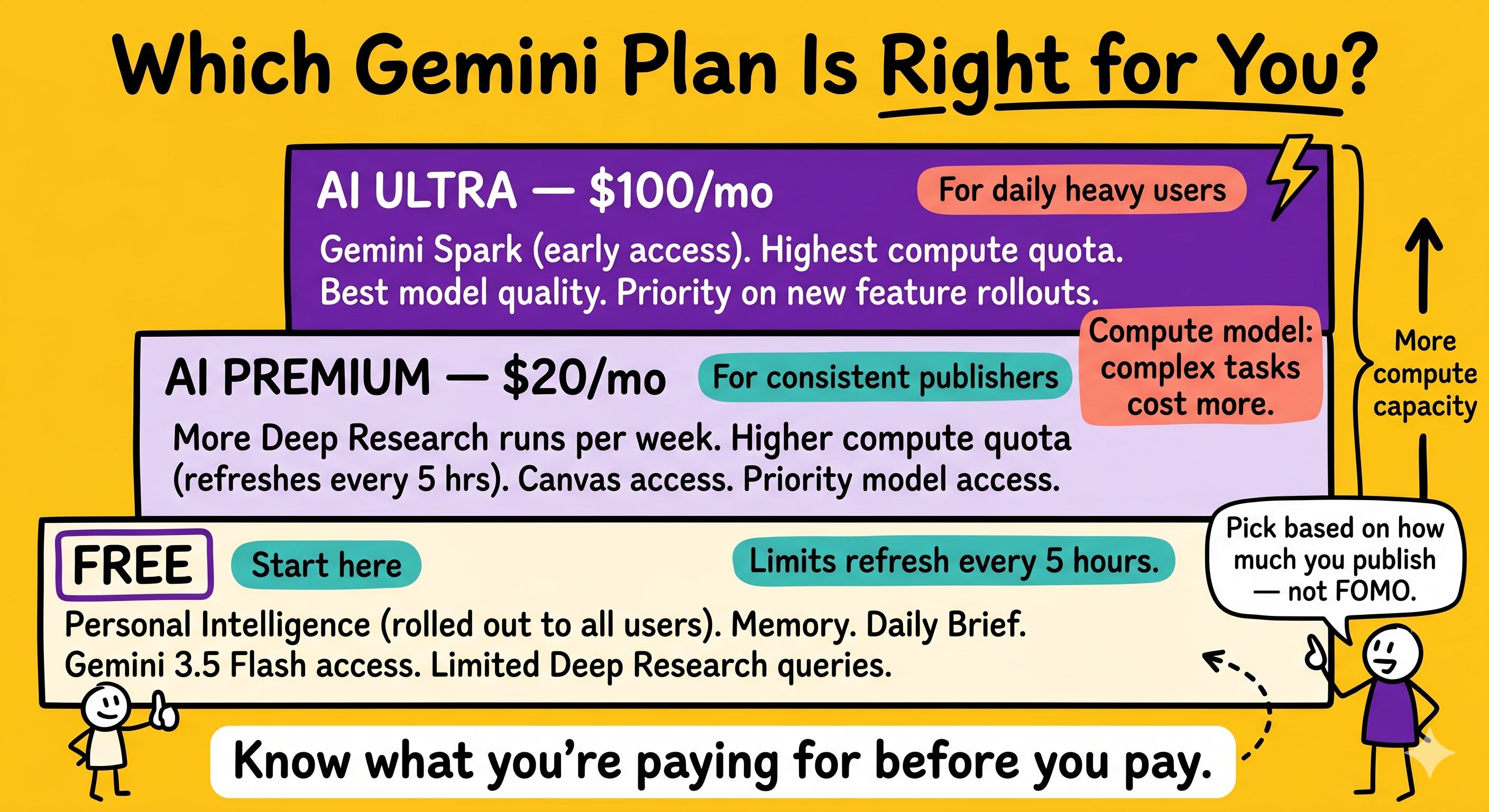
First: a new AI Ultra plan at $100 per month. This is for heavy users. It includes early access to Gemini Spark, the highest quality model outputs, and the most usage capacity. The old top-tier plan also dropped from $250 to $200, which signals that Google is repositioning who these plans are for.
Second: usage limits are moving away from “daily prompt counts” to a “compute-used model.” Your limit isn’t how many times you ask something. It’s how much computing power your requests consume. Complex tasks like Deep Research cost more compute. Quick questions cost almost nothing. Limits refresh every five hours until you hit your weekly cap.
Step 1. If you’re on the free tier, stay there for now. The new features available to free users — Personal Intelligence, Memory, improved Search AI Mode — are worth testing before you upgrade anything.
Step 2. If you’re already on a paid plan, open your Gemini account and find the usage dashboard. Look at which tasks are consuming the most compute. That tells you whether you’re getting value from the plan you’re on.
Step 3. Treat Deep Research and Spark as your highest-compute tasks. Use them for your most important work — research for a major newsletter series, building a lead magnet, competitive analysis. Use standard prompts for quick tasks.
Step 4. The $100 AI Ultra tier makes sense if you’re using Spark daily and running multiple Deep Research sessions per week. It doesn’t make sense if you’re publishing twice a week and mostly writing prompts in conversation mode. Know what you’re paying for before you pay for it.
THE TAKEAWAY
Google didn’t announce one flashy headline feature at I/O 2026.
They announced infrastructure. A model built to act, not just answer. An agent that works in the background. A morning brief that replaces inbox triage. A memory system that means you stop starting from zero every session.
None of these trend on social media. But put them together and your week as a solo newsletter creator looks different.
Seven categories. Pick one. Start there.
Thank you for this update! Went in a set up some thing’s I didn’t have set - amazing what is coming. Great instructions to follow.